
For supplies & consumables
Track the supplies you use, not sell.
Turn on consume mode and Sell becomes Consume. Buy and receive stock as you always have, mark what gets used, and see what is left and what it cost. No sale prices, no checkout, no invoices.


- Nº 1
Restaurants & cafés
Ingredients, cups, lids and cleaning supplies come in by the case and go out by the shift. Mark what got used and see what is left before the next order day.
- Nº 2
Salons, clinics & labs
Color, gloves, reagents and single-use kits. Record what each day used and catch a running-low shelf before it holds up an appointment.
- Nº 3
Offices & schools
Paper, toner, classroom and art supplies. Hand them out, mark them consumed, and know what to reorder before the next term starts.
- Nº 4
Makers & crafters
Yarn, resin, fabric, beads and packaging. Mark the materials each batch used up and see what went into production at cost.
- Nº 5
Facilities & maintenance
Filters, bulbs, fasteners and spare parts across buildings and vans. Track them by location, mark parts used on a job, and hear about a low bin early.
- Nº 6
Churches & nonprofits
Donated food, clothing and hygiene kits. Take donations in as stock, mark what is handed out, and see how much went out and what is still on the shelf.
Consume mode
Bought → received → consumed.
Turn on CONSUME items instead of SELL under Life Cycle Options in Settings. The Sell button becomes Consume: enter how many, tap Mark as Consumed, and the count drops with a record of what was used and when. Items show how many were consumed, the For Sale tab becomes Available, and the order list becomes Consumption.
Buying works as it always has. Record each purchase with its cost, and mark it received when the delivery arrives if you track that step. Using several things at once? Switch on Add to cart in the prompt, add the rest, and consume the whole cart in one go.
Usage & low stock
See what's used and what's left.
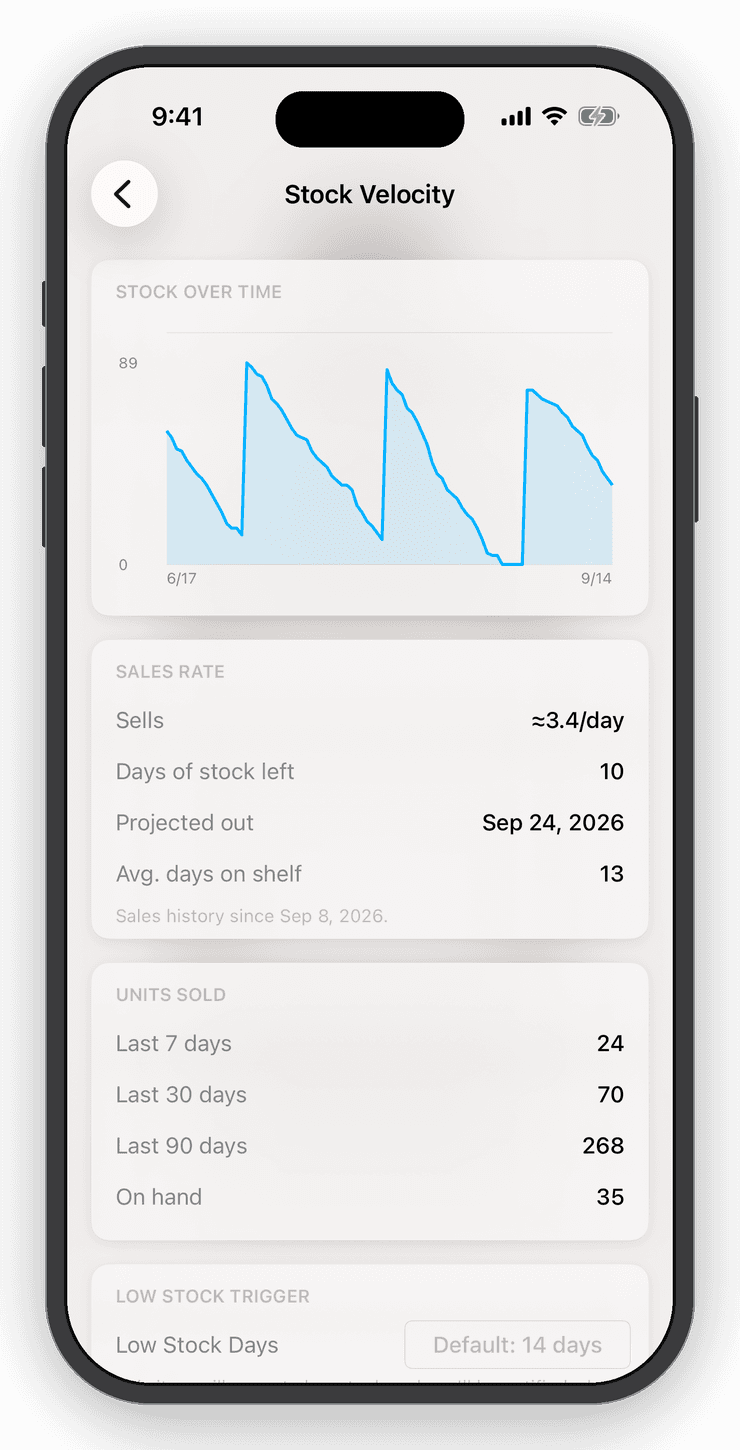
Every item shows what was consumed and what remains. Set a low-stock threshold and get a push notification before a shelf runs dry. On Professional, stock velocity turns your usage rate into days of cover and charts stock over time.
Costs stay in view: the purchase price, the cost of goods consumed, and the value of what is on hand at cost. Sale prices, revenue, profit, payments, invoices and refunds are hidden, because a supply room has none.
Stocktakes
Count a shelf, a room, or the whole store.
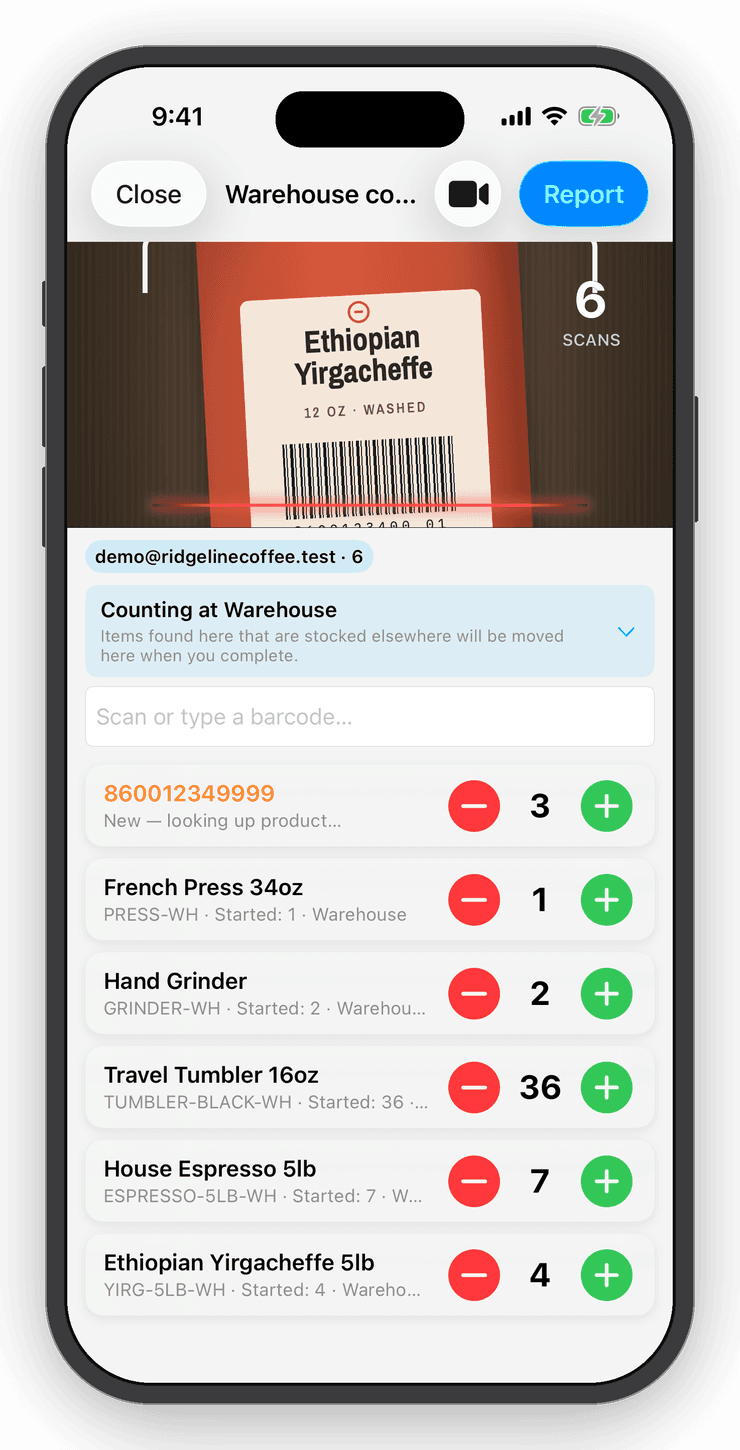
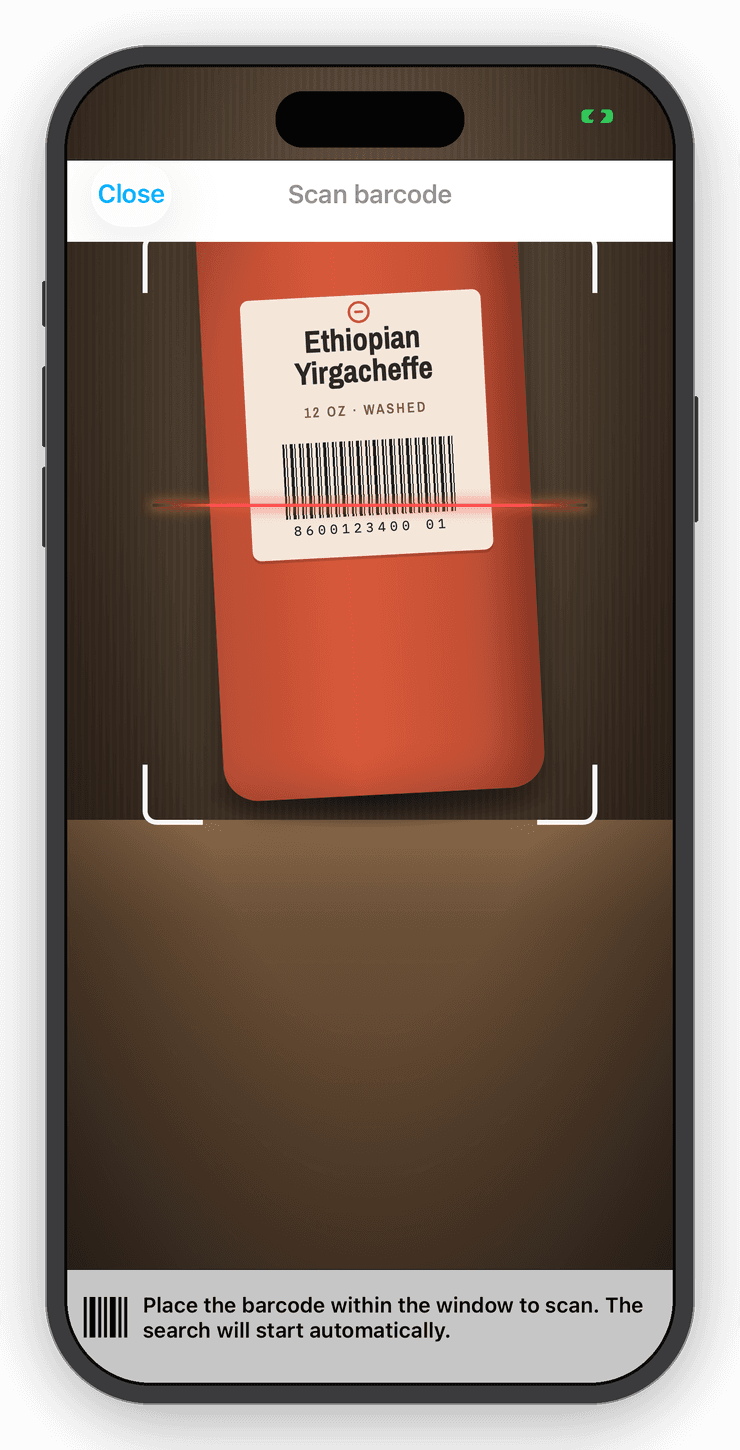
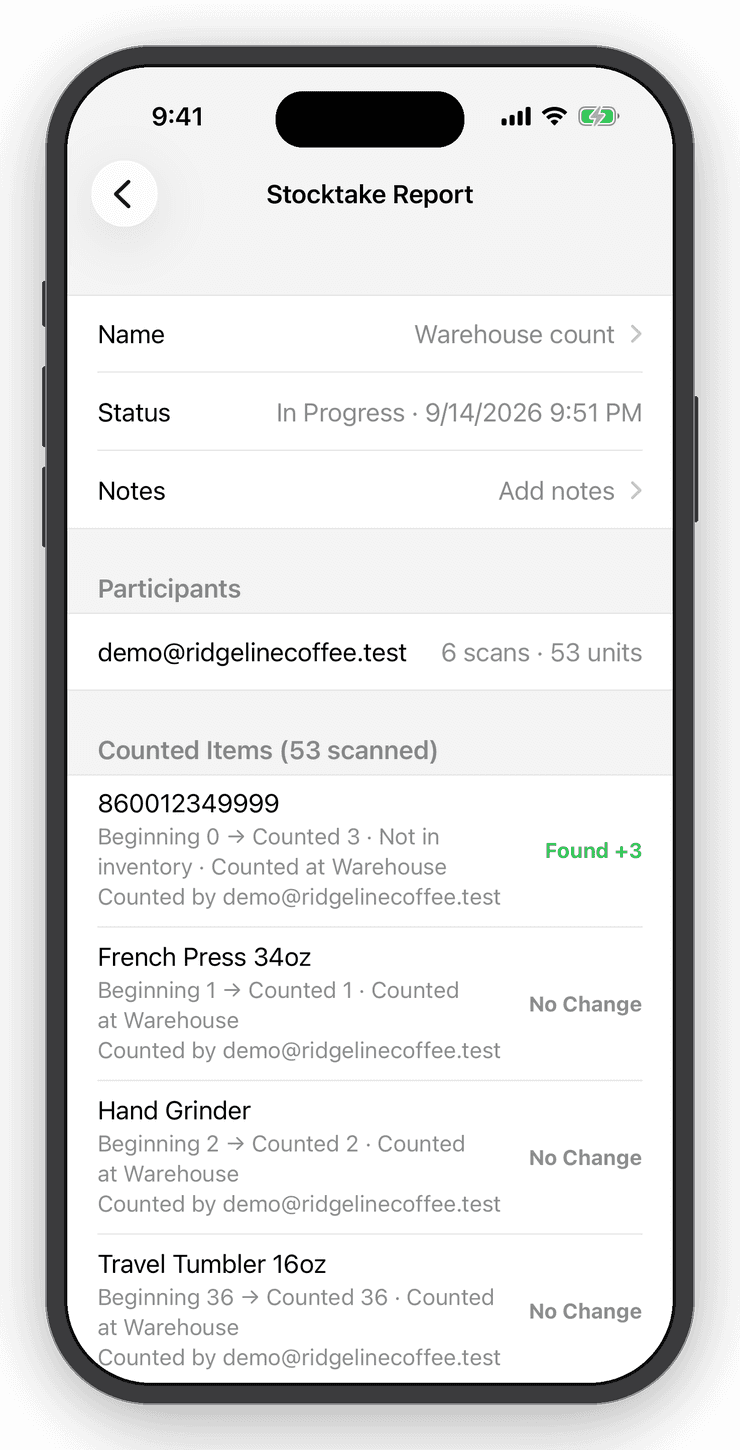
Start a stocktake, choose where you are counting and scan. Preview every discrepancy before you commit, then keep a report of what changed. Undo puts it all back.
iPhone, Android & web
One supply count on every device.
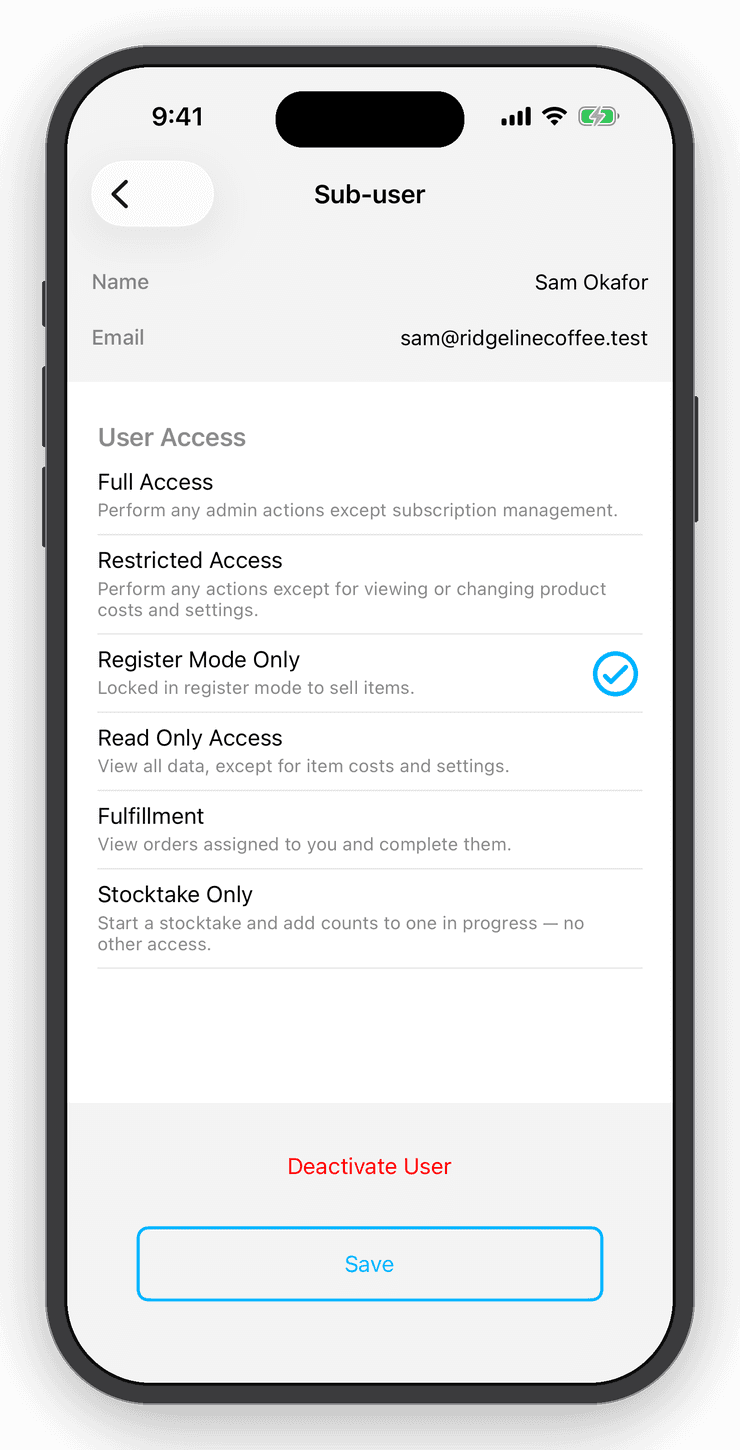
Mark something consumed on a phone in the stock room and the count updates on every signed-in device. Consume mode works the same in the iPhone and iPad app, on Android and in the web app. Sub-users can record what they use without seeing what you paid.
Questions
Good to know
A third way to end an item's life, beside Sell and Check In / Out. You still buy and receive stock, but instead of selling it you mark it consumed. Each consumption is recorded with no sale price, already complete, so the counts show what was used and what is left.
Know what's left before you run out.
Download Inventory Now free, turn on consume mode, and scan your supply shelf in.