
Hardware barcode scanner
A $50 scanner. Pull the trigger, the item comes up.
We tested Inventory Now with the Tera HW0002, a wireless 2D scanner that pairs with your phone over Bluetooth, on both iPhone and Android. Scan from the Items tab or inside a stocktake and the app does the rest. The whole setup is below, QR codes included.


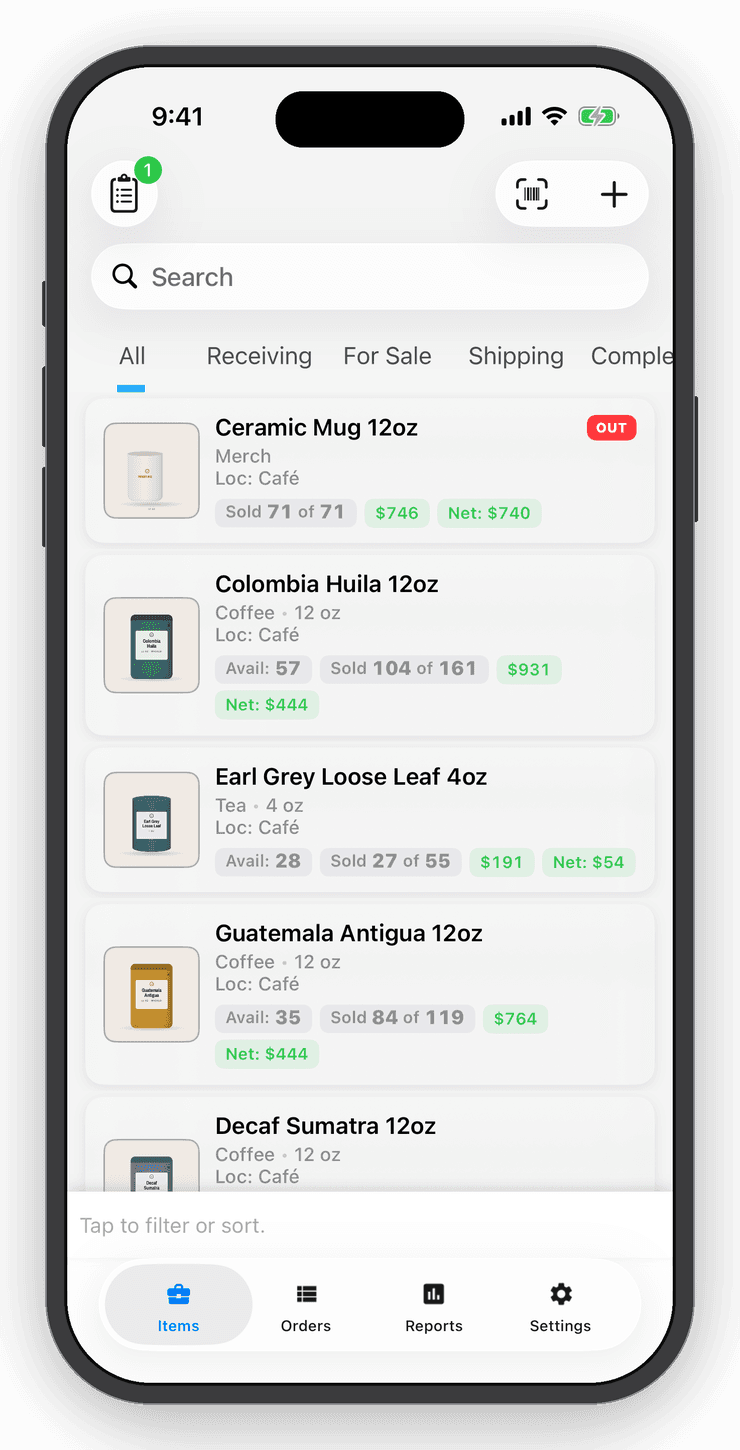
- Nº 1
Faster than the camera
No framing, no focus. Point the scanner at a shelf of boxes and every pull of the trigger is a scan.
- Nº 2
Nothing to set up in the app
Your phone sees the scanner as a keyboard. Pair it once in Bluetooth settings and Inventory Now picks up every scan on the Items tab and in stocktakes, on iPhone and Android alike.
- Nº 3
New items fill themselves in
Scan a barcode the app has never seen and it creates the item, with the name, photo and price looked up from the shared catalog.
Tera HW0002 2D wireless barcode scanner
Bluetooth, 2.4 GHz and USB, reads 1D and 2D codes, and comes with a stand and charging cable. Any scanner that connects as a Bluetooth keyboard should behave the same way; this is the one we tested end to end.
Amazon price when we checked, October 2026.
Setup
Pair it with your phone.
Two QR codes to pair, scanned with the scanner itself, one trip to Bluetooth settings, and one more code to quiet the beeper. The codes are taken from Tera's own manual.
- Step 1
Scan “Bluetooth HID”
Turn the scanner on and scan this code with it. It switches the scanner to Bluetooth keyboard mode, which is how your phone talks to it.

Bluetooth HID - Step 2
Scan “Pairing”
The LED flashes blue: the scanner is discoverable for about a minute.

Pairing - Step 3
Pair in Settings
Open your phone's Bluetooth settings (Settings › Bluetooth on iPhone) and tap “BarCode Scanner HID”. The scanner beeps once and the LED turns solid blue. From then on it reconnects by itself; pull the trigger to wake it.
- Step 4
Turn the beeper down
The scanner confirms every scan at full volume out of the box. Scan this code once for a quieter beep; the vibration still tells you the scan landed.

Beeper volume: Low
Scanning
What happens when you scan.
- Step 1
On the Items tab
Scan a barcode. If the item exists it opens, with Buy and Sell one tap away. If it does not, Inventory Now creates it and fills in the name, photo and price from the shared catalog. If several items share the barcode, the list filters to just those.
- Step 2
In a stocktake
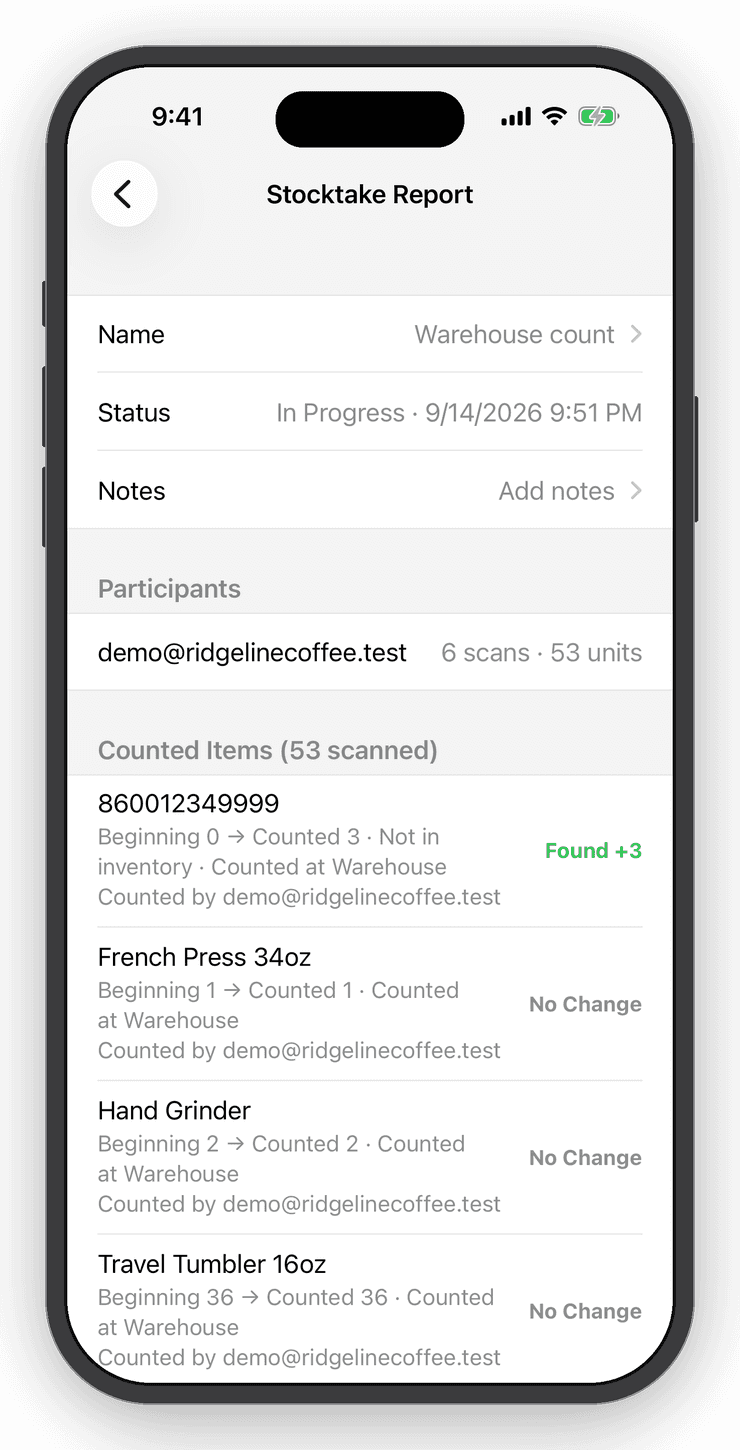
Start a stocktake session and walk the shelf with the scanner. Every scan adds to the count. Items the app has never seen are created on the spot with their details looked up, so an empty account can end the session with a full catalog.
Keyboard
Getting the on-screen keyboard back.
Your phone treats the scanner as an external keyboard, so its on-screen keyboard stays hidden while the scanner is connected. On iPhone, one more code fixes that; Android has a toggle of its own.
- Step 1
iPhone: scan “Double press trigger: On”
Scan this once. It tells the scanner to show or hide the iPhone keyboard whenever you double-press the trigger.

Double press trigger: On - Step 2
Double-press to type
Need to enter a price or a note? Double-press the trigger and the keyboard comes up in the app. When you are done typing, just pull the trigger and keep scanning. The setting stays on.
- Step 3
Android: use the keyboard toggle
Android keeps a software toggle for the on-screen keyboard while the scanner is connected. Tap it when you need to type; no scanner setting is needed.
Stocktakes
Count a shelf, a room, or the whole store.
Start a stocktake, choose where you are counting and scan. Preview every discrepancy before you commit, then keep a report of what changed. Undo puts it all back.
Questions
Good to know
No. Inventory Now reads any scanner that connects as a Bluetooth or USB keyboard. The Tera HW0002 is the one we tested end to end, and the setup codes on this page are its codes. Linea Pro and Infinea scanners are supported natively on iOS.
Free for your first ten items.
No account, no card. When the shelf gets crowded, Personal is $10 a month.